
Skylight Calendar Review + Discount Code: How It Runs Our Whole Home on Autopilot
I cannot believe how long it took me to try a digital calendar. I have always been a paper planner person, but I really needed to figure out a way to simplify my systems and routines. I had notebooks, planners, charts, and papers all over our house. The Skylight Calendar has been such a blessing. It has helped our home run more smoothly and taken a huge weight off my mental load.
Use code JESSIEM for 15% off your Skylight Calendar.
In this post:
What the Skylight Calendar is and what it does
Why it has been a game changer for our family of 6
How I set up color coded daily routines for each of my kids
How I use it for my own daily reminders too
Our full weekly chore rotation broken down by day
How the Rewards and star system works and the philosophy behind it
My complete rotating meal plan system and how I set it up
How the grocery list feature works
Free Skylight Setup Planning Worksheets so you can plan your whole system on paper before you ever open the app
Free editable Canva chore chart visual templates so your kids know exactly what each chore looks like and what "done" means
What Is the Skylight Calendar?
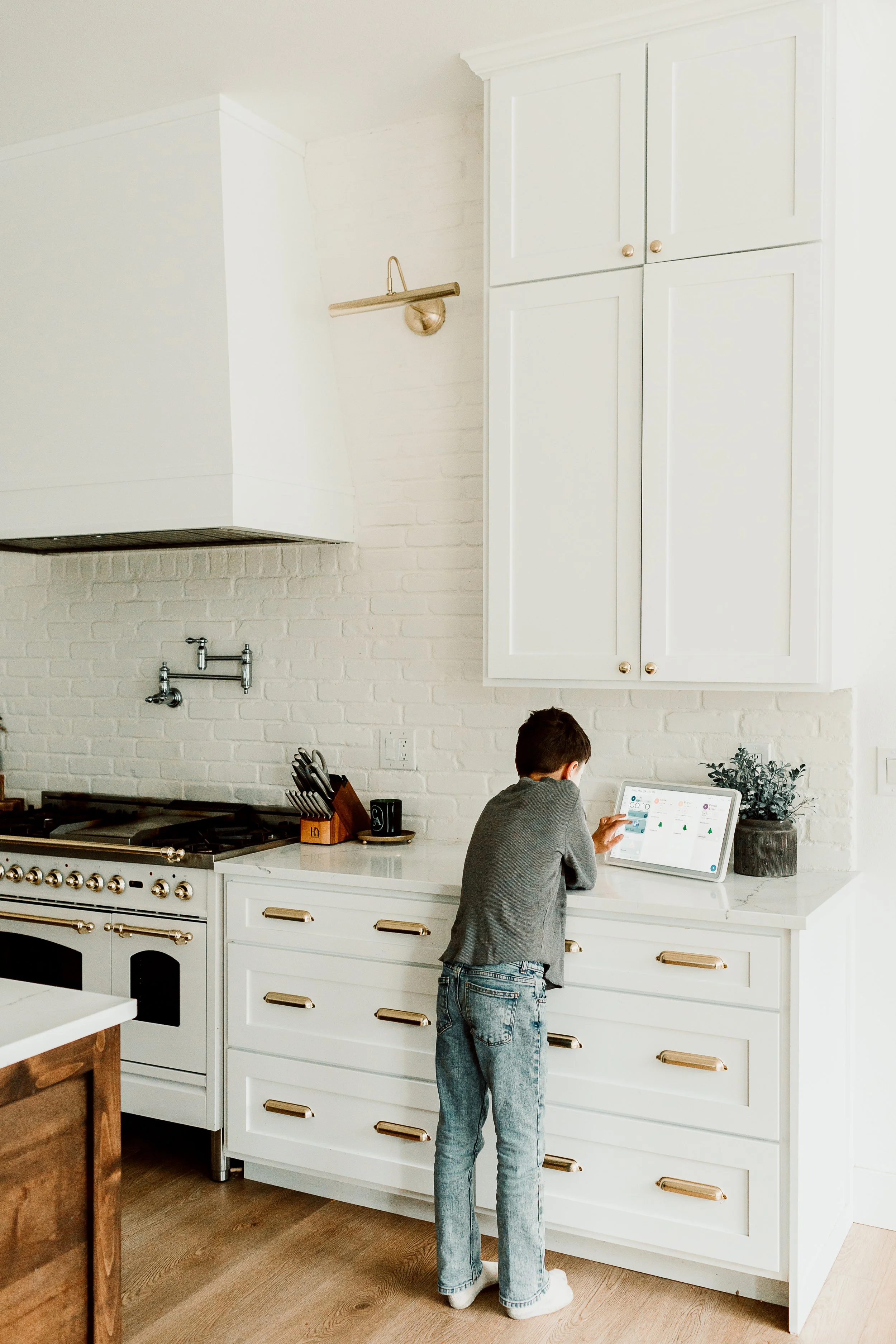
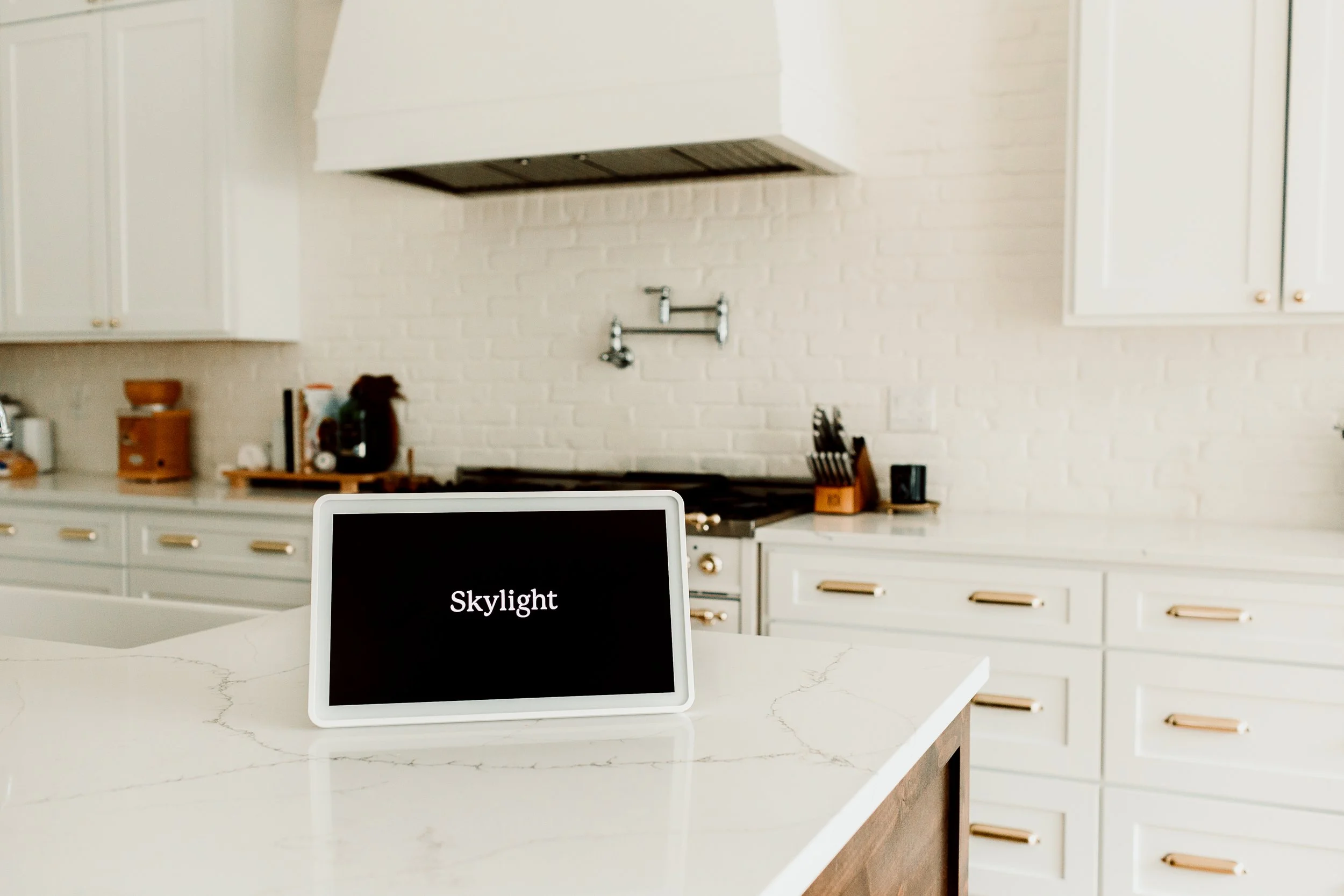
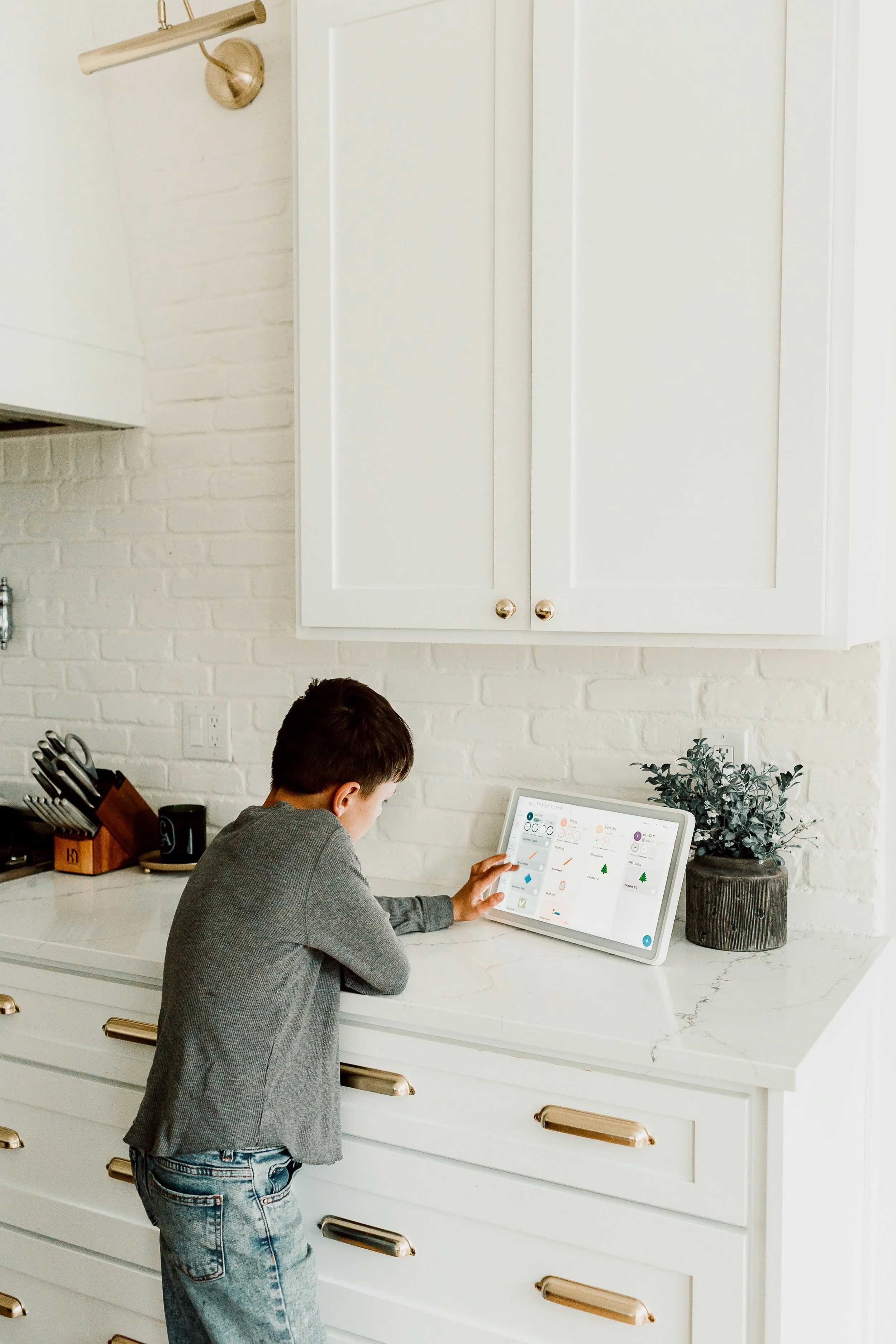
The Skylight Calendar is basically a whole home digital command center. It has a calendar, daily routines and chore charts, custom lists, meal planning, and recipes. It lives on your kitchen counter (or wherever you mount it) and keeps your whole family on the same page without needing a single paper chart, sticky note, or binder. The Skylight syncs with an app on mine and my husband’s phones.
What I Love About the Skylight Calendar
No Internet or Social Media Access
The last thing we need is another screen with internet or social media capabilities, and I am so thankful the Skylight cannot access either. It does one job and it does it really well. That alone was a huge selling point for me.
Daily Routines and Chore Charts
Hands down, my favorite feature of the Skylight Calendar is the Tasks tab. I have created custom daily routines and chore charts for all four of my kids. Even my 3 year old uses it and she now completes her morning and evening routines independently. I will share exactly how I set everything up below, but the big picture is this: I no longer have to remember to tell my kids what they need to do each day. Our fridge was becoming overrun with chore charts, school lists, and routine charts, and my brain could not hold all of that information or remember to remind all four kids to do all of their individual tasks. The Skylight solved that problem completely.
Meal Planning and Recipes
Somehow every evening around 4pm I would realize I had a family of 6 to feed and no idea what was for dinner. Meal planning has been a struggle for me since we got married 13 years ago and I have tried a lot of different systems. The Skylight Calendar has a full meal planning feature with a dedicated Recipes tab where you can upload all of your favorite recipes. It is as simple as taking a picture or pasting a link. The Sidekick feature pulls it in and saves it as a written recipe automatically. It is amazing. The meal planning feature lets you plan out a full week of dinners in less than 5 minutes by picking from your saved recipes and assigning them to a day. You can even set meals to repeat on a rotating schedule if you want to. The meal planning feature is available with the Skylight subscription.
Custom Checklists
Another thing filling up our fridge was checklists, grocery lists, and to-do lists. The Skylight Calendar has a dedicated Lists tab for all of these. We use ours for our grocery list, our household to-do list, and my son even uses it to keep track of how much money he has earned, which was yet another paper previously living on our refrigerator.
Use code JESSIEM for 15% off your Skylight Calendar.
My Honest Take
The biggest way the Skylight has changed our home is that it has taken a significant amount of mental load off of me. Before this, I did have systems in place, but they were scattered all over the house. Printables in one spot, notebooks in another, chore charts on the fridge, recipes in a binder. On top of keeping track of where everything was, I still had to remember to actually use all of it and remind my kids to use it too. I was the human alarm clock, the checklist, and the task manager for four kids on top of managing everything else that comes with running a home. It was overwhelming and our home was not running smoothly because of it.
What the Skylight did was allow me to take everything that was scattered across our house and living in my brain and pull it all into one place. I set it up once and now it just runs. My kids know what they need to do without me telling them. The routines happen without me managing every step. The meal plan repeats without me starting from scratch every week. It has genuinely automated so many things in our home!
Some of the Skylight features require a subscription (the meal planning and rewards). The subscription costs $79/year which is a little less than $7 per month. For me, this has felt 100% worth it to have a built in assistant in the area of meal planning. The subscription is not necessary whatsoever, but I’ve benefited quite a bit from the features it adds.
If you are a mom who feels like you are holding everything together by yourself and you are exhausted, the Skylight is for you!
Use code JESSIEM for 15% off your Skylight Calendar.

How I Set Up Daily Routines and Chore Charts
Color Coding Your Kids
Two words: color coded. If you have multiple kids, you probably already color code everything and the Skylight Tasks tab was made for you. You can create color coded daily routine and chore lists for each child, and the Skylight subscription includes a Rewards feature where you can assign stars to completed tasks and set up rewards for your kids to work toward.
When you have four children, staying on top of reminding each one to do their chores and daily tasks is a full time job in itself. The idea of delegating is wonderful until you realize you still have to remember to remind everyone to do the things you delegated. The Skylight takes that off your plate entirely.
Setting Up Daily Routines
The first thing I did was create a color coded daily routine list for each child. Each task list is organized by Morning, Afternoon, Evening, and Chores. (If you need help thinking through your own family’s daily routines, I created printable worksheets you can use along with this blog post to plan out your family’s routines and chores - download it below!).
Here is an example of what our routines look like:
Morning Tasks (all kids):
Brush teeth
Make bed
Listen to Bible Yoto Card (see my full Yoto post HERE)
Morning Tasks (my 9 year old, independent school work before we start together):
Math
Copywork
Piano
Afternoon Tasks:
Myofunctional therapy exercises
Evening Tasks:
Eat bedtime banana
Shower
Pajamas
Go Potty
Brush teeth
Put Yoto on bed
This system has really helped my kids take ownership of their routines. The bedtime routine in particular has helped my 3 and 5 year old daughters become much more independent in the evenings. They know exactly what needs to be done and they can do it without me following behind them reminding them of every single step.
If you do not have a Skylight Calendar yet but want to work on building a more independent bedtime routine, you can grab my Bedtime Picture Charts HERE.
Here is the section:
How I Use the Skylight for My Own Routines
The Skylight is not just for managing my kids. I have my own daily reminders built in too and it has been just as helpful for keeping me on track as it has been for them.
My personal reminders are simple but they are the kinds of things that are easy to let slip when you are busy running a household and taking care of everyone else. Having them show up on the Skylight means I do not have to rely on my own memory or a sticky note that gets buried under the mail.
Here is what my daily reminders look like:
Daily Reminders:
Drink 3 water bottles
Start 1 load of laundry in the morning
Put 1 load of laundry away
Tidy my bedroom
Tidy my bathroom
The laundry reminders have been especially helpful for me. Starting a load in the morning and putting one away each day keeps laundry from piling up into an overwhelming mountain by the end of the week. It sounds so simple but having that visual reminder where I can actually check it off has made me so much more consistent with it.
The tidying reminders for my bedroom and bathroom work the same way the kids' chore reminders work for them. I do not have to think about it or try to remember the last time I wiped down my bathroom counter.
Use code JESSIEM for 15% off your Skylight Calendar.

How I Set Up Our Weekly Chore System
As my kids have grown and become more capable, I wanted everyone pitching in on different tasks each day of the week. The challenge was figuring out how to help them know what chores to do and when. The Skylight made it possible.
Rotating Daily Chores
My three oldest kids rotate through daily chores. I set each one up one time in Skylight by assigning the chore to each child every 4 days so it cycles through automatically on a rotating schedule.
Rotating chores include:
Morning laundry basket (bring all dirty clothes from upstairs to the laundry room)
Unload the dishwasher
Weekly Cleaning Schedule
The rest of the chores are divided by day of the week. Here is our full weekly cleaning rotation:
Monday = Bathrooms
Tuesday= Bedrooms
Wednesday = Main Living Areas
Thursday = Kitchen + Bedroom Tidy
Friday = Floors + Bathroom Tidy
Saturday = Mudroom + Misc.
Monday: Bathrooms
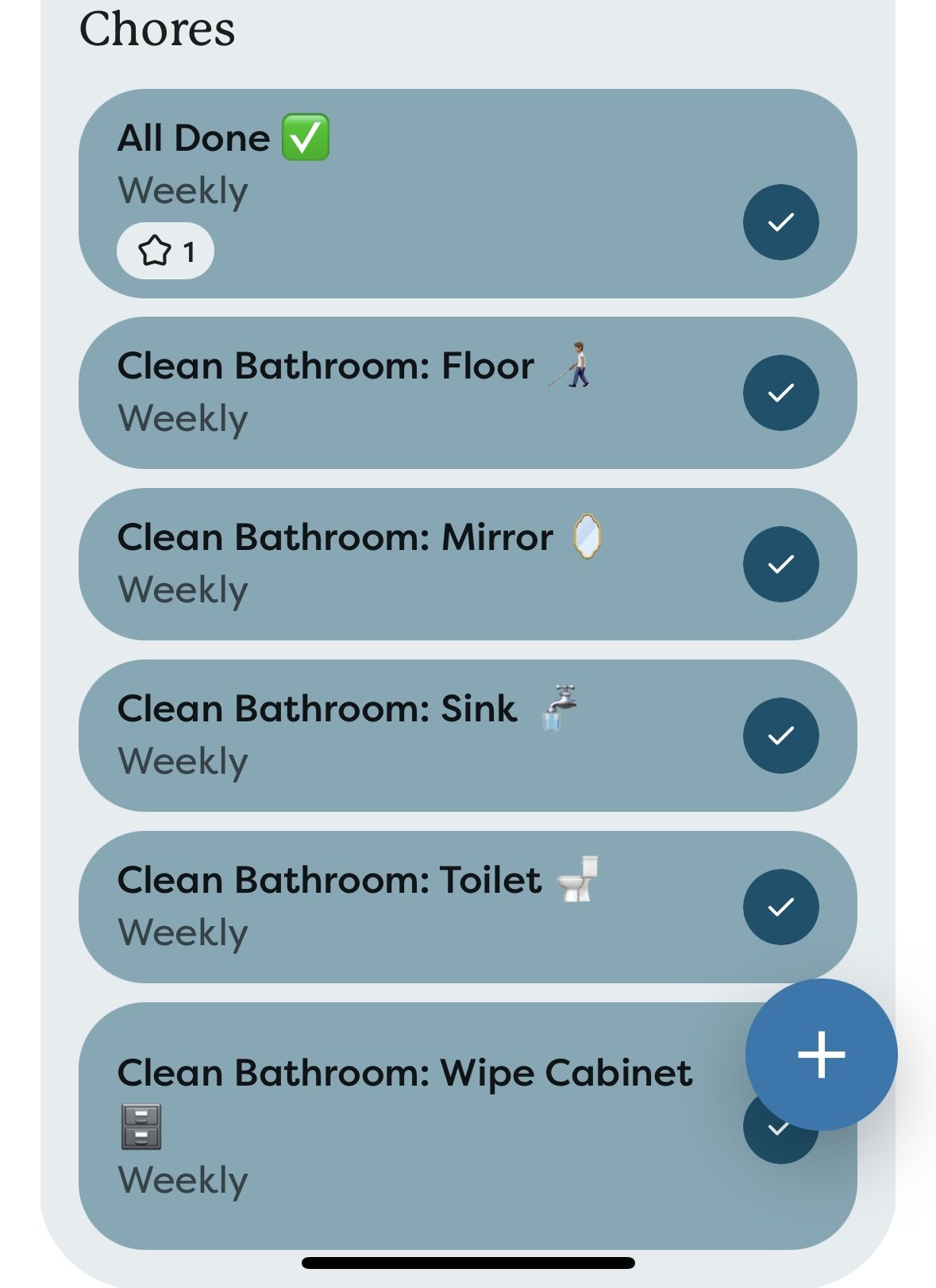
Each of my three older kids is responsible for one bathroom. I handle our primary bathroom. Their Monday chore list in Skylight looks like this:
Clean Bathroom: Sink
Clean Bathroom: Mirror
Clean Bathroom: Toilet
Clean Bathroom: Wipe cabinet fronts
Clean Bathroom: Vacuum floor (I know the emoji below is a blind man. My kids think he’s vacuuming though so we’re going with it).
All Done (they click this to earn their star)
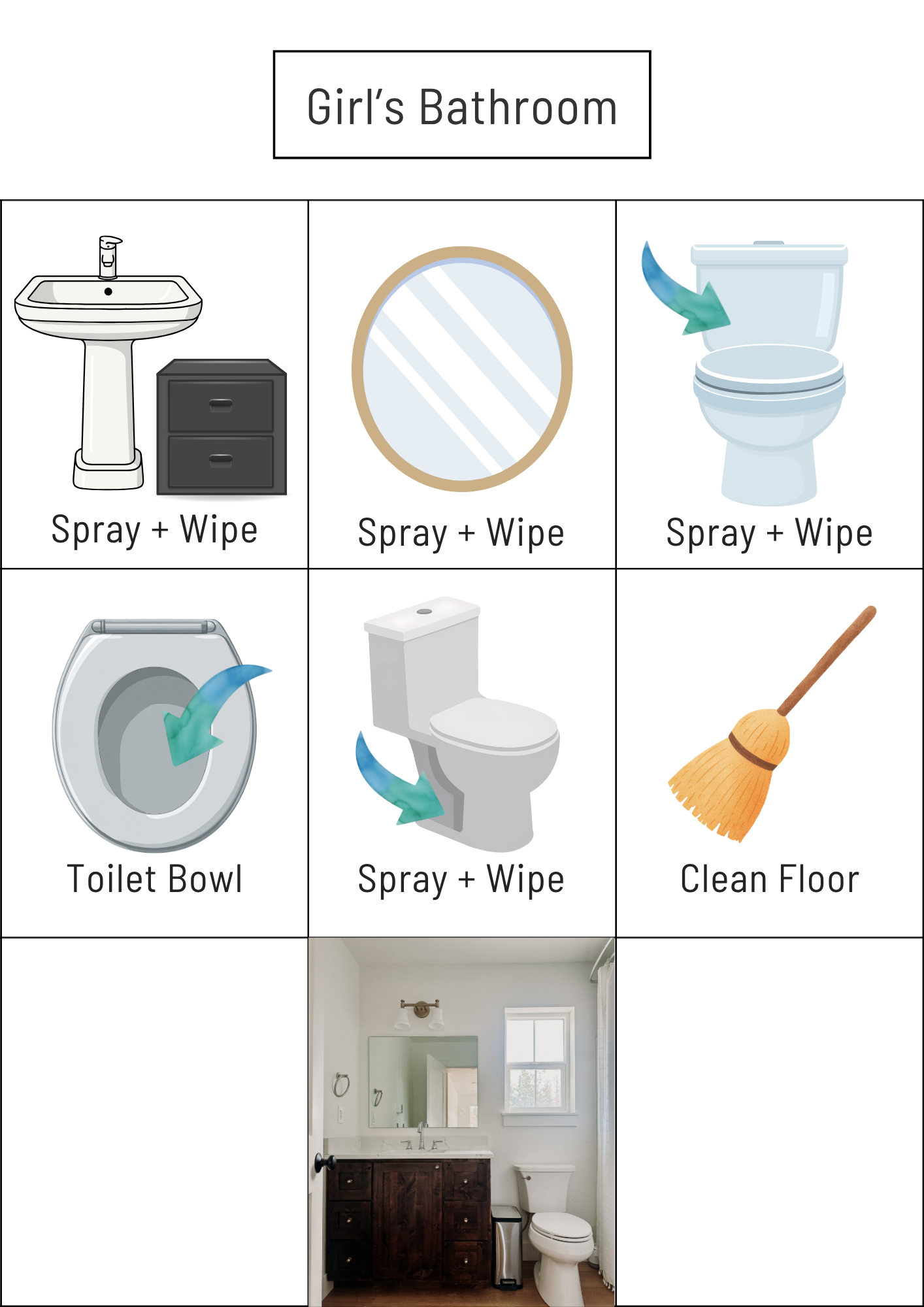
I also made a laminated chart that is taped inside each bathroom cabinet. It has pictures of every task that needs to be done and a picture of what the finished bathroom should look like. This has been a game changer for making sure they actually know what "clean" means. You can grab the editable template I created HERE.
Tuesday: Bedrooms
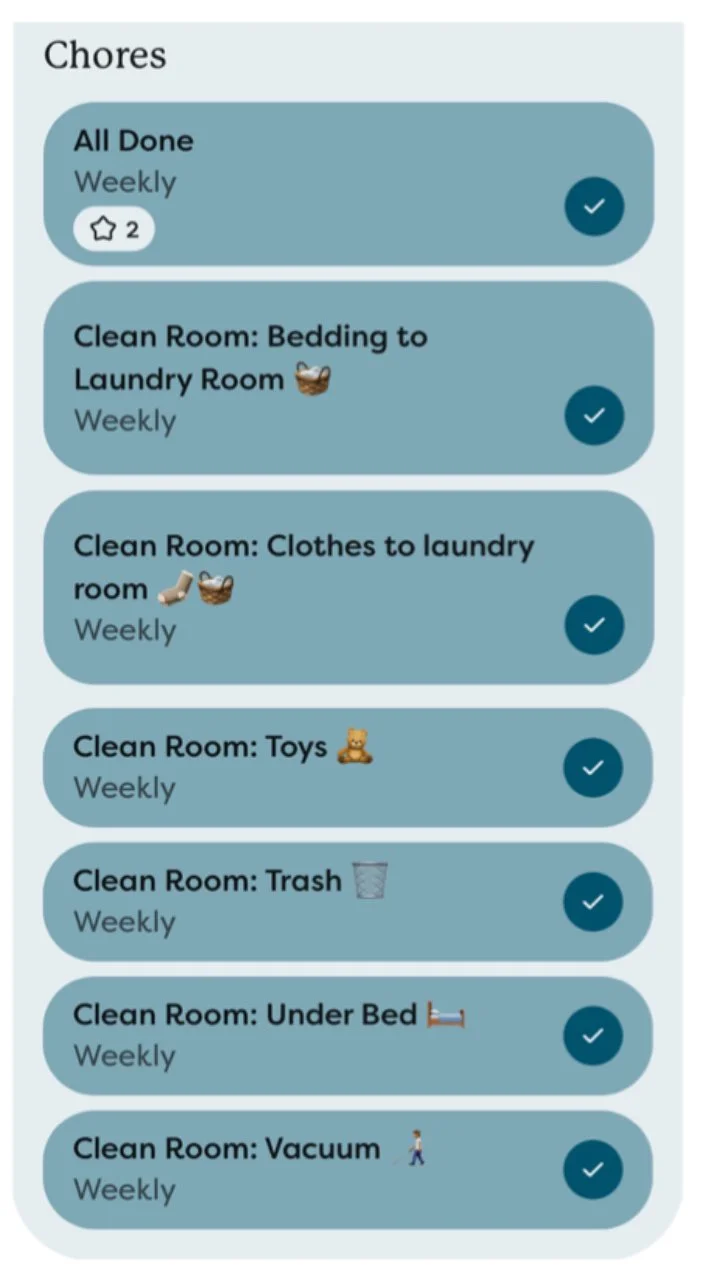
Each of my three oldest is responsible for cleaning their own bedroom. I clean the primary bedroom and vacuum the kids' rooms once they are done. Their Tuesday chore list looks like this:
Clean Room: Bedding to laundry room
Clean Room: Dirty clothes to laundry room
Clean Room: Pick up toys
Clean Room: Throw away trash
Clean Room: Clean under bed
Clean Room: Dust
All Done
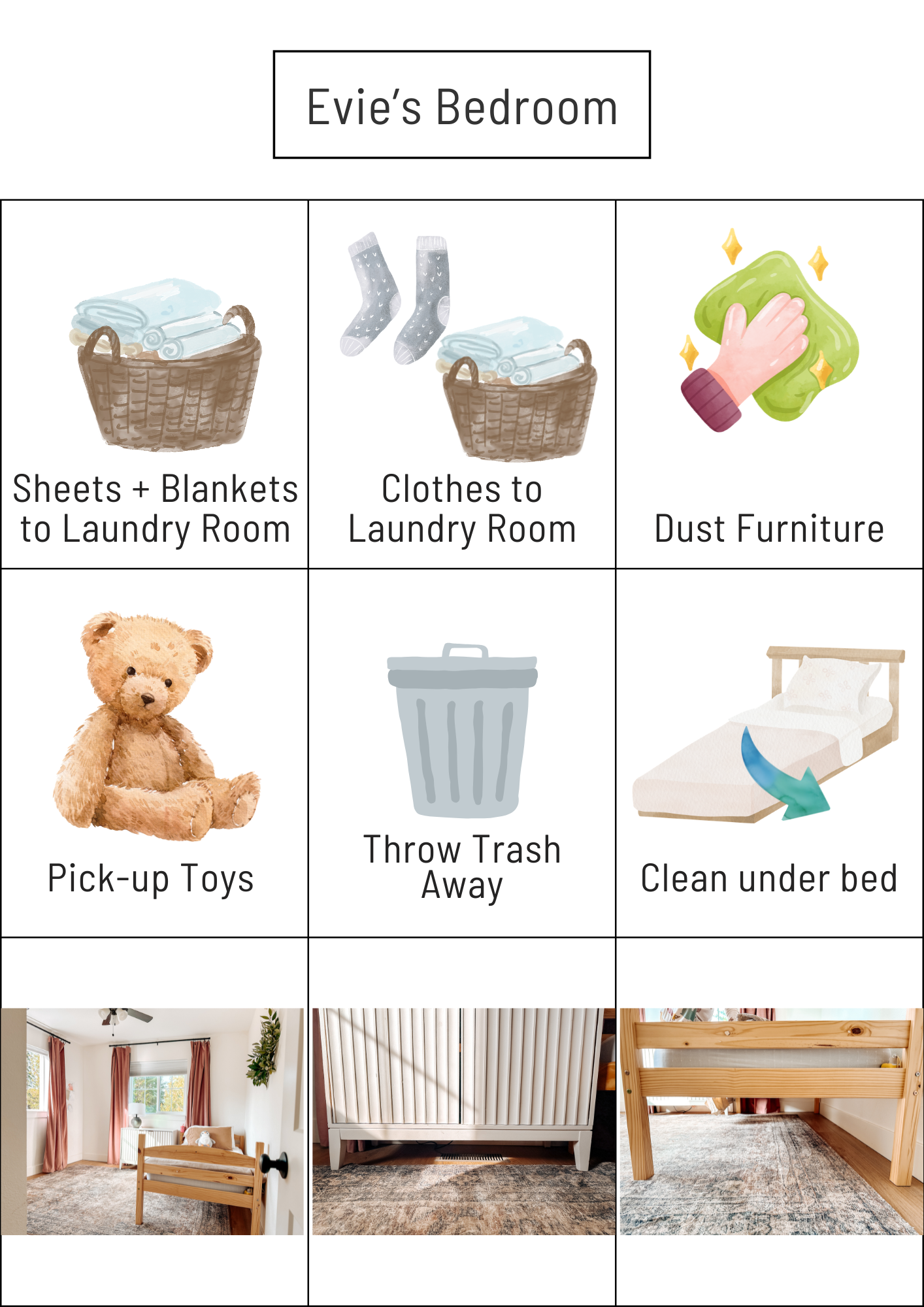
I made the same type of laminated instruction sheet for their bedrooms. It hangs on the wall and includes a picture of exactly what their room should look like when they are finished. You can grab the editable template I created HERE.
Wednesday: Main Living Areas
Wednesday is for cleaning our dining room and living room. Each child has an assigned task:
Child 1: Vacuum stairs
Child 2: Tidy and dust TV cabinet
Child 3: Wipe stair banister
Everyone also gets a reminder to do a quick bathroom tidy. This is not a deep clean like Monday, just a wipe down of the counter and toilet if needed.
Thursday: Kitchen and Bedroom Tidy
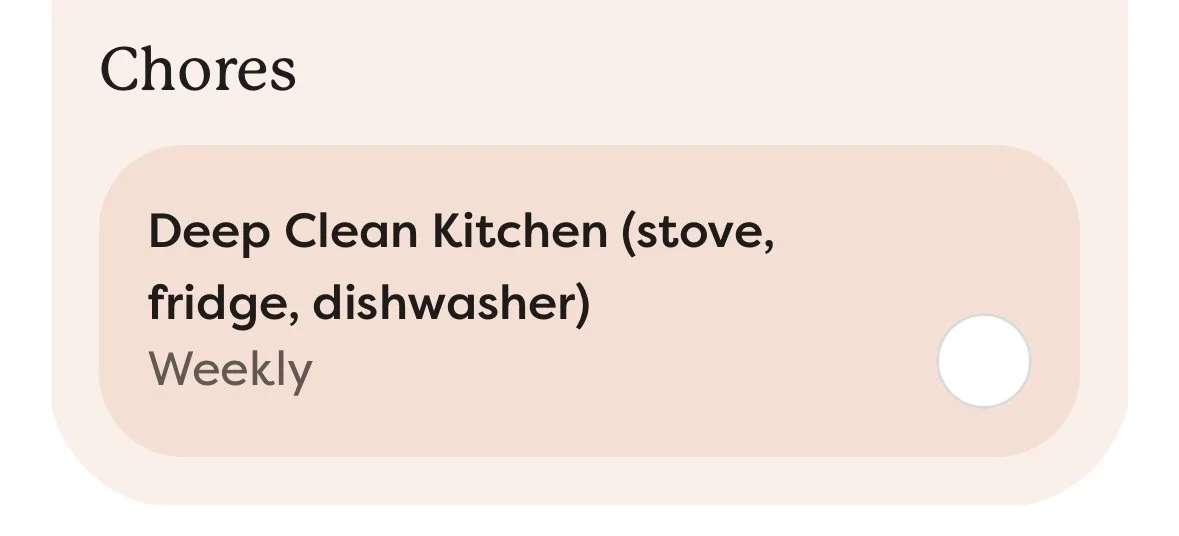
Each child gets a reminder to tidy their bedroom. Again, not a deep clean like Tuesday, just keeping things from getting out of hand mid-week. Thursday is my day to deep clean the kitchen, which includes the stove, the inside of the refrigerator, and running a cleaning cycle on the dishwasher.
Friday: Floors and Bathroom Tidy
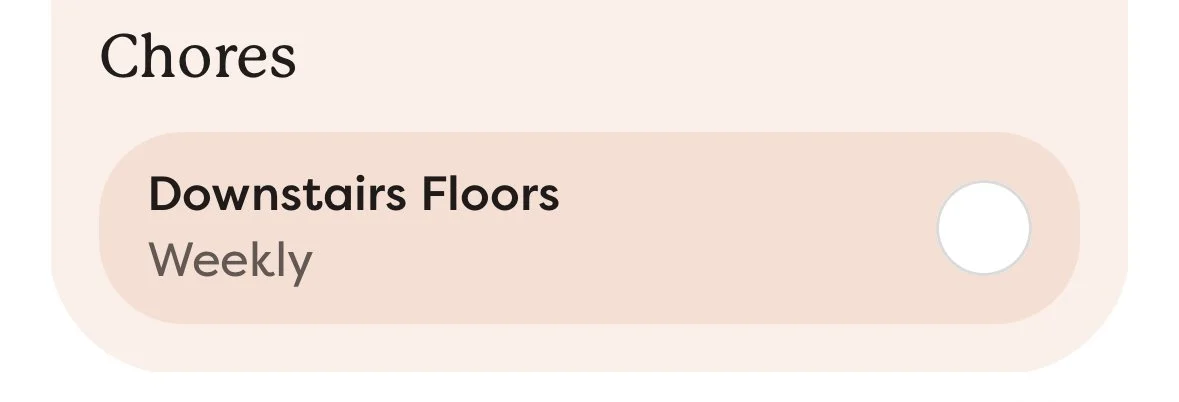
Friday is my floor day. I vacuum and mop the entire downstairs. The kids all pitch in to pick up any toys, clothes, or trash from the floors before I start. Everyone also gets another bathroom tidy reminder to close out the week.
How I Set Up the Rewards System
The Skylight subscription includes a Rewards feature that lets you assign stars to tasks and set up rewards your kids can work toward.
I have been intentional about not assigning stars to every single task. We want our kids to understand good stewardship and to know that contributing to our home is simply part of being a family. It is not something they get rewarded for just because it exists. Because of that, things like personal hygiene tasks and certain chores do not earn stars. Those are just life skills and personal responsibilities.
The "All Done" Task
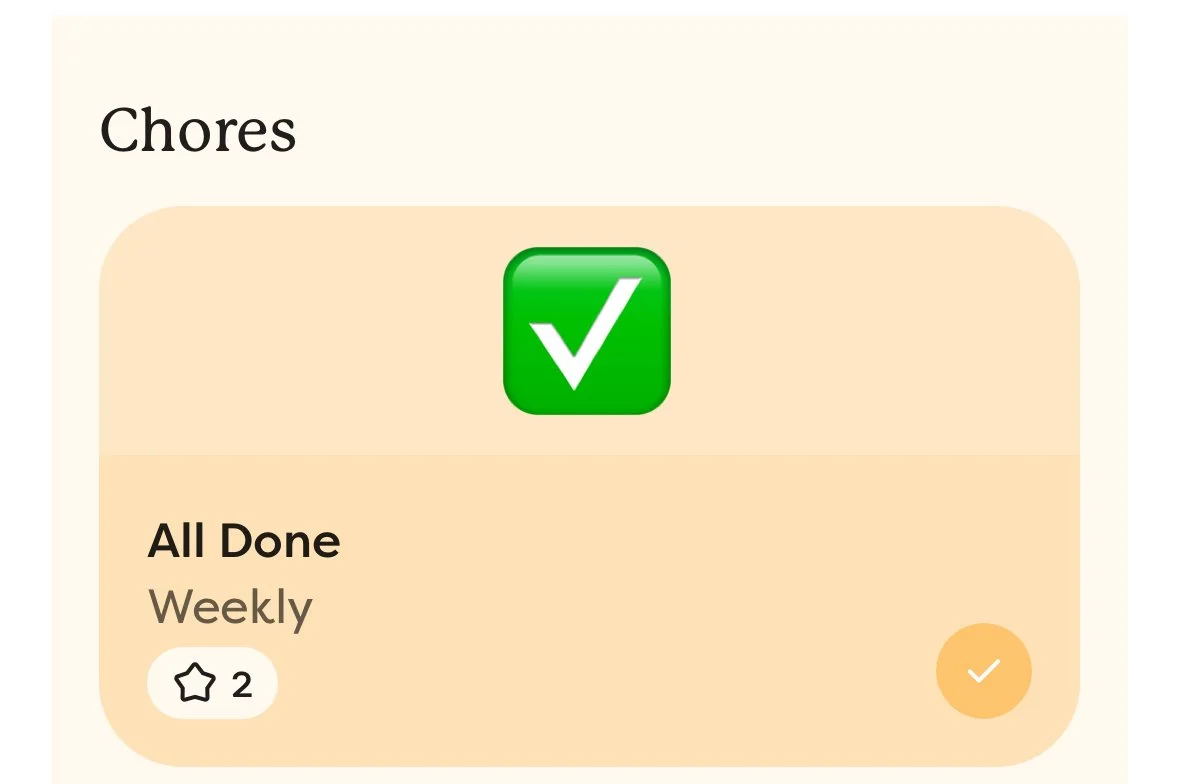
One thing I did to keep the star system simple was create a task at the bottom of each chore list called "All Done" with a green checkmark emoji. Instead of awarding a star for every individual step of cleaning a bathroom, they click "All Done" once the entire job is finished and that is what earns them stars. It keeps the focus on completing the whole job rather than rushing through each step just to rack up stars.
Our Rewards List
Here is exactly what our rewards list looks like so you can use it as a starting point for your own:
Popcorn during school = 15 stars
Print 5 coloring pages = 15 stars
Walk with Mom or Dad = 15 stars
Craft with Mama = 50 stars
Thrift store trip with Mama = 50 stars
Family movie night = 50 stars
Ice cream = 50 stars
New Yoto card or audiobook = 50 stars
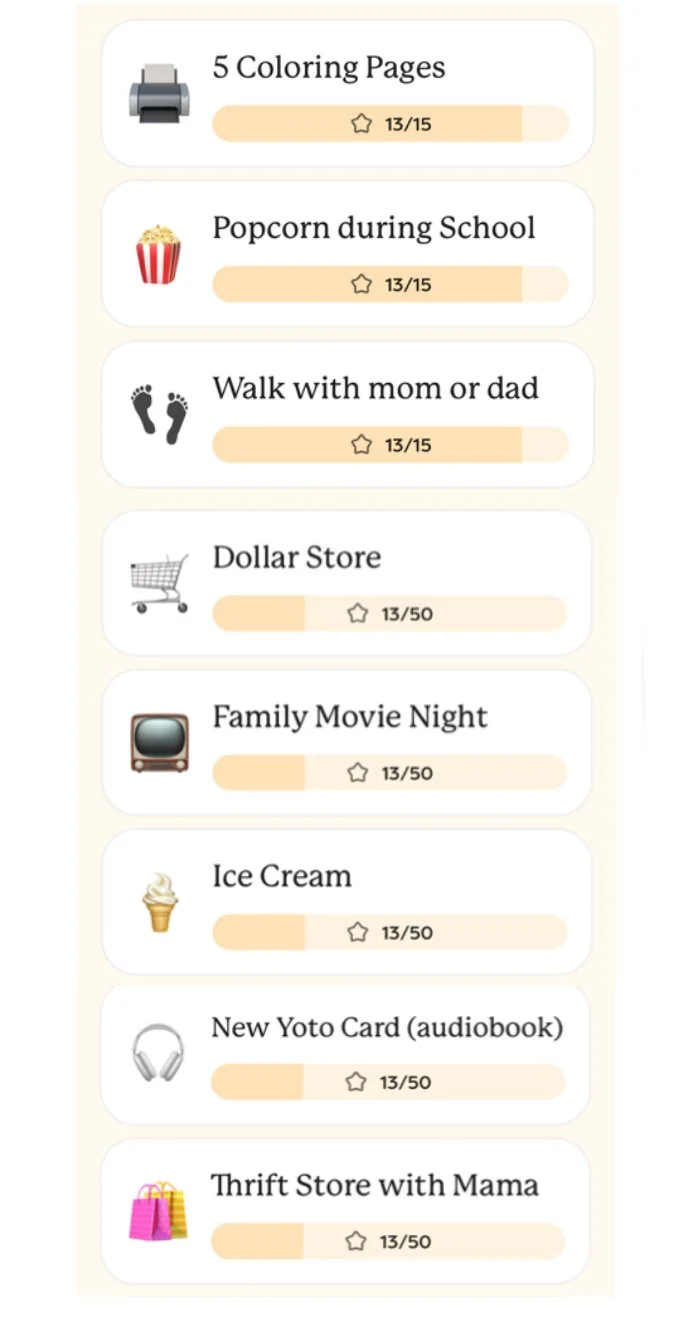
Most of our rewards are experiences and time together rather than things. That was intentional. I wanted the rewards to feel special and meaningful without creating a system where they are constantly earning toys or treats. The smaller rewards at 15 stars are easy enough to reach quickly so younger kids stay motivated. The bigger rewards at 50 stars give the older kids something to work toward over time. I’m still refining our rewards system, but this has been working well so far!
Other reward ideas: Stay up 15 minutes past bedtime, Sleepover with mom and dad, At-Home Manicure with mom etc.
Use code JESSIEM for 15% off your Skylight Calendar.

How I Set Up Meal Planning and Recipes
I used to have recipes scattered everywhere: a binder, screenshots on my phone, screenshots on my computer, Google Docs, saved Instagram posts, Pinterest folders. It was not a smooth process. Now everything lives in one place on my kitchen counter. Some of the meal planning features are only available with a Skylight subscription (~$6.50/month).
Uploading Your Recipes
It took me about an hour to upload 40+ recipes into the Skylight. You can add a recipe by taking a picture of it or pasting a link, and the Sidekick feature converts it into a clean written recipe saved in your Recipes tab. Once they are all in there, you never have to hunt for a recipe again.
Creating a Rotating Meal Plan
This is the part that completely changed dinnertime for me. Here is exactly how I set it up so you can copy it:
I created 7 weeks of dinners with 5 meals per week.
Each meal is labeled by week number and recipe name. For example: "Week 1: Tacos."
I work through one week at a time. When I finish Week 7, I loop back to Week 1.
My meal plan just repeats every 7 weeks and I never have to think about what is for dinner.
I also added recipes for breakfasts, snacks, and baking that I use weekly or every other week, like our fresh milled sandwich bread recipe and my kids' favorite homemade granola.
The Grocery List Feature
When you assign each day's meal for the week, a notification pops up asking if you want to add that meal's ingredients to your grocery list. It automatically pulls every ingredient into the list for you. It has significantly cut down on the time I spend on meal planning and grocery ordering. The whole process now takes me about 10 minutes from start to finish: meal planning, building the grocery list, and ordering groceries online.
If you do not have a Skylight Calendar yet but want to try a similar rotating meal plan system, check out my IG story highlight HERE to see how I did this same system with a 3 ring binder first.
Use code JESSIEM for 15% off your Skylight Calendar.
Final Thoughts
The thing that has changed the most in our home since getting the Skylight Calendar is my mental load. Before this, I was the system. Everything lived in my head and it was exhausting. I was trying to remember every task, every routine, and every reminder for four different kids on top of everything else that comes with running a home, and our home was not running smoothly because of it.
What I love most is that I set it up once and it just runs. My kids know what they need to do without me telling them every single day. The routines happen. The meal plan repeats. The chore rotation cycles through on its own. I am no longer the one holding all of it together in my head, and that has made an enormous difference in how I feel at the end of the day.
If you are a mom who is drowning in paper systems, mental load, and the constant effort of trying to keep everyone on track, the Skylight Calendar is genuinely worth it. It is one of those purchases I wish I had made years ago.
Use code JESSIEM for 15% off your Skylight Calendar.